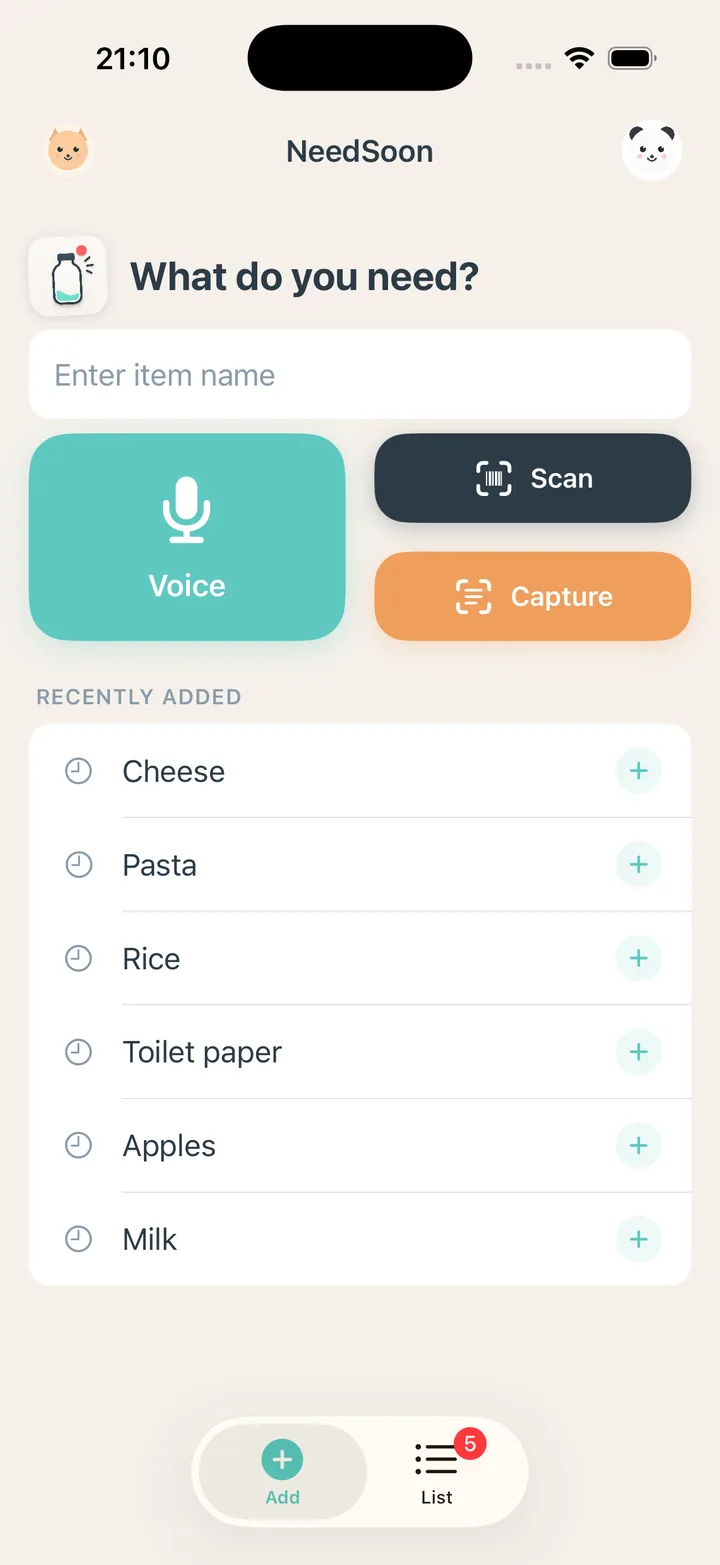
Home Screen widget
See how many items are left at a glance, and start adding with the voice, scan, or camera buttons.
Shopping list for iPhone, iPad & Apple Watch
“Out of milk?” Add it right there, in the fewest taps possible—before you forget. Share with family by just showing a QR code. No account, no email.
Why NeedSoon
The problem doesn’t happen at the store. It happens at home.
You open the fridge: “We’re almost out of milk.” You reach for the refill: “Did we run out?” If you don’t note it right then, it’s gone by the time you reach the store.
Most shopping list apps are built for the shopping trip. NeedSoon is built for the second you notice—and we cut every step we could between that moment and a saved item.
Somewhere in there, something else gets your attention.
No category, no quantity. It saves first; fix it only if you need to. From a widget or Siri, you don’t even open the app.
You usually notice you’re running low at home, in the middle of something else. So adding it should only take a moment.
Out of milk?The first screen is a text field. Re-add recent items with one tap, or use your voice or a barcode.
Added “Milk”No confirmation screens. Add it and get back to what you were doing—it’s already on your family’s list too.
Now just buy it.Try it
This is the app’s Add screen, recreated in your browser. Type an item or tap a suggestion. Hit the voice button to watch “milk and eggs” become two items.
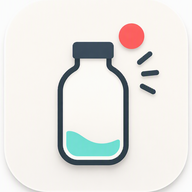 What do you need?
RECENTLY ADDED
Ways to add
Home Screen, Lock Screen, or your wrist. Add from wherever you are—without hunting for the app.
See how many items are left at a glance, and start adding with the voice, scan, or camera buttons.
Speak to your wrist to add. At the store, check items off as you go. It’s included with the iPhone app—nothing extra to install.
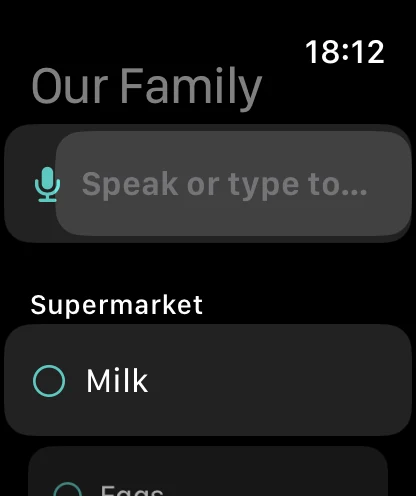
What you say is split into separate items.
Scan a barcode to fill in the product name. Not found? It switches straight to typing.
Threw away the barcode? Take a photo of the label. Text is read on your device and offered as suggestions—no connection needed.
Hands full? Just ask. Answer Siri’s follow-up and it’s on the list.
“Siri, add to NeedSoon”One tap to the add screen—before you even unlock your iPhone.
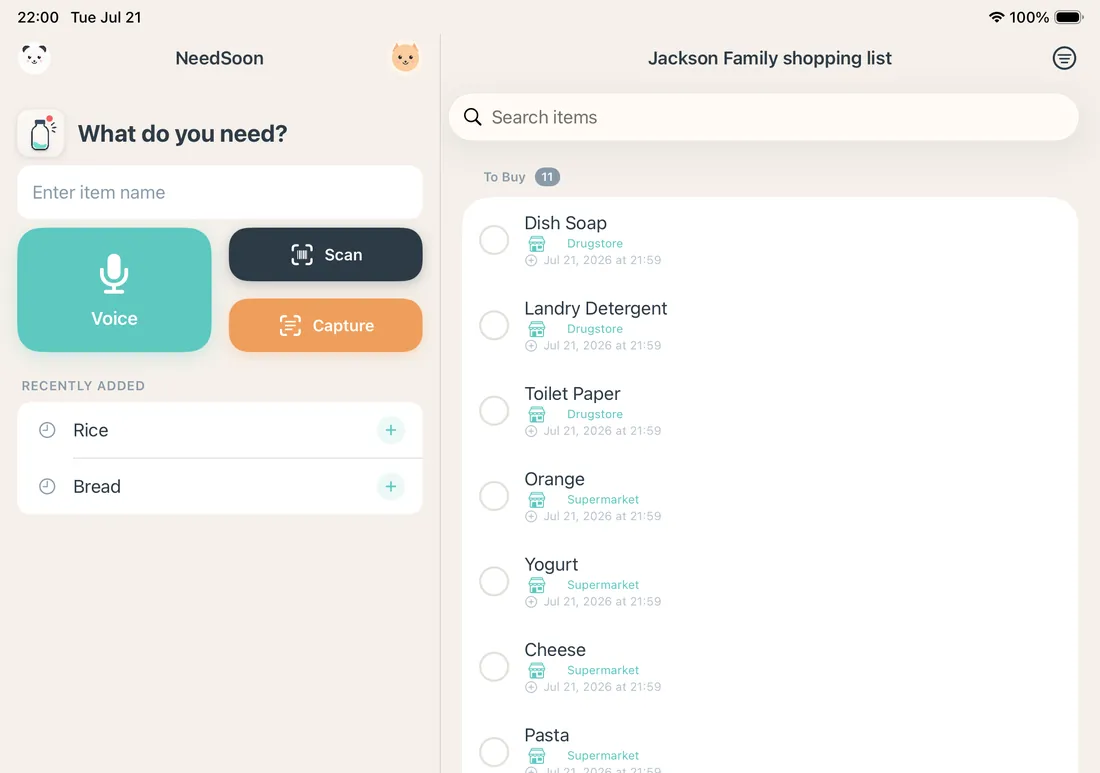
On a larger screen, the Add screen and your shopping list sit side by side. Add from the iPad in the kitchen, too.
Family sharing
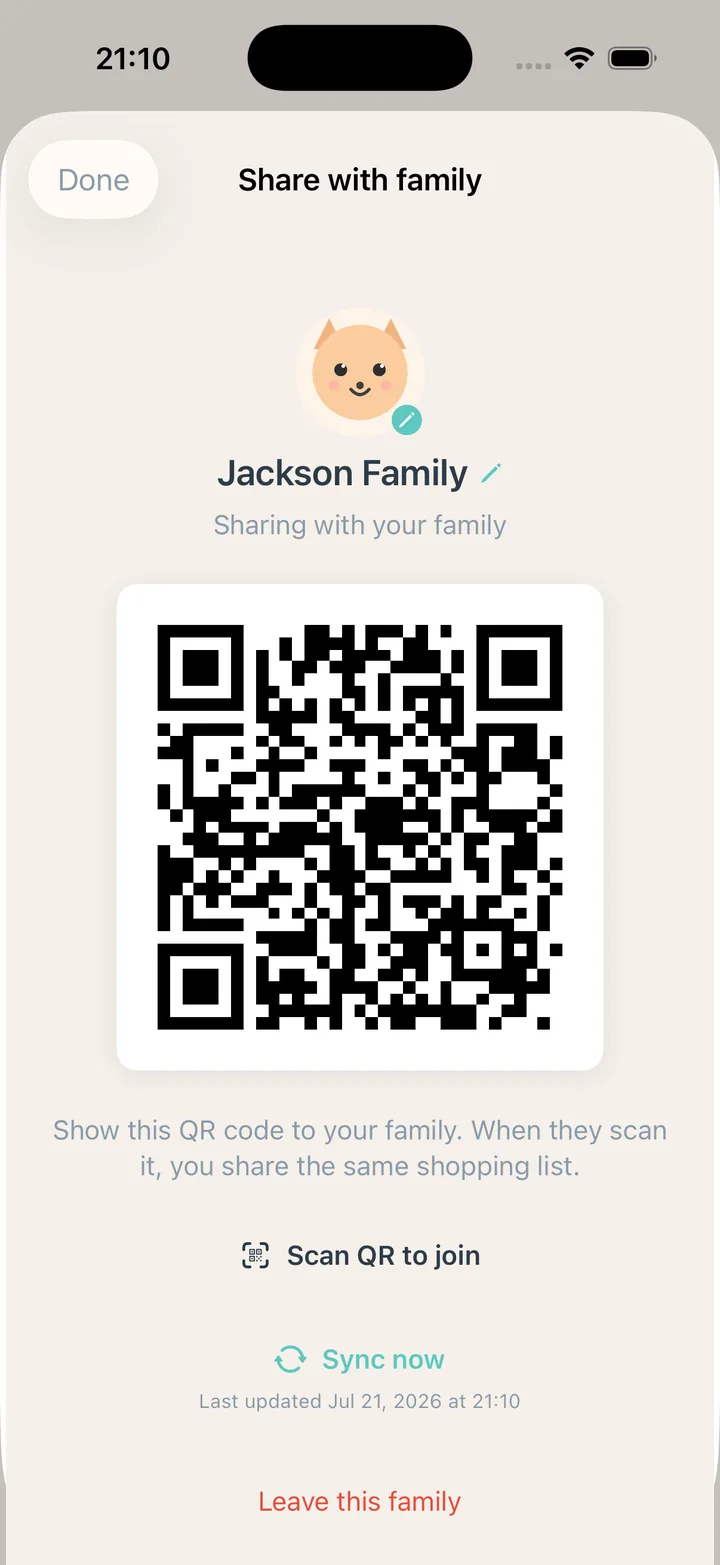
No account. No email address. No invite links. Open the same screen, scan the QR, and you’re on the same shopping list.
For couples, roommates, and anyone running errands for family.
At the store
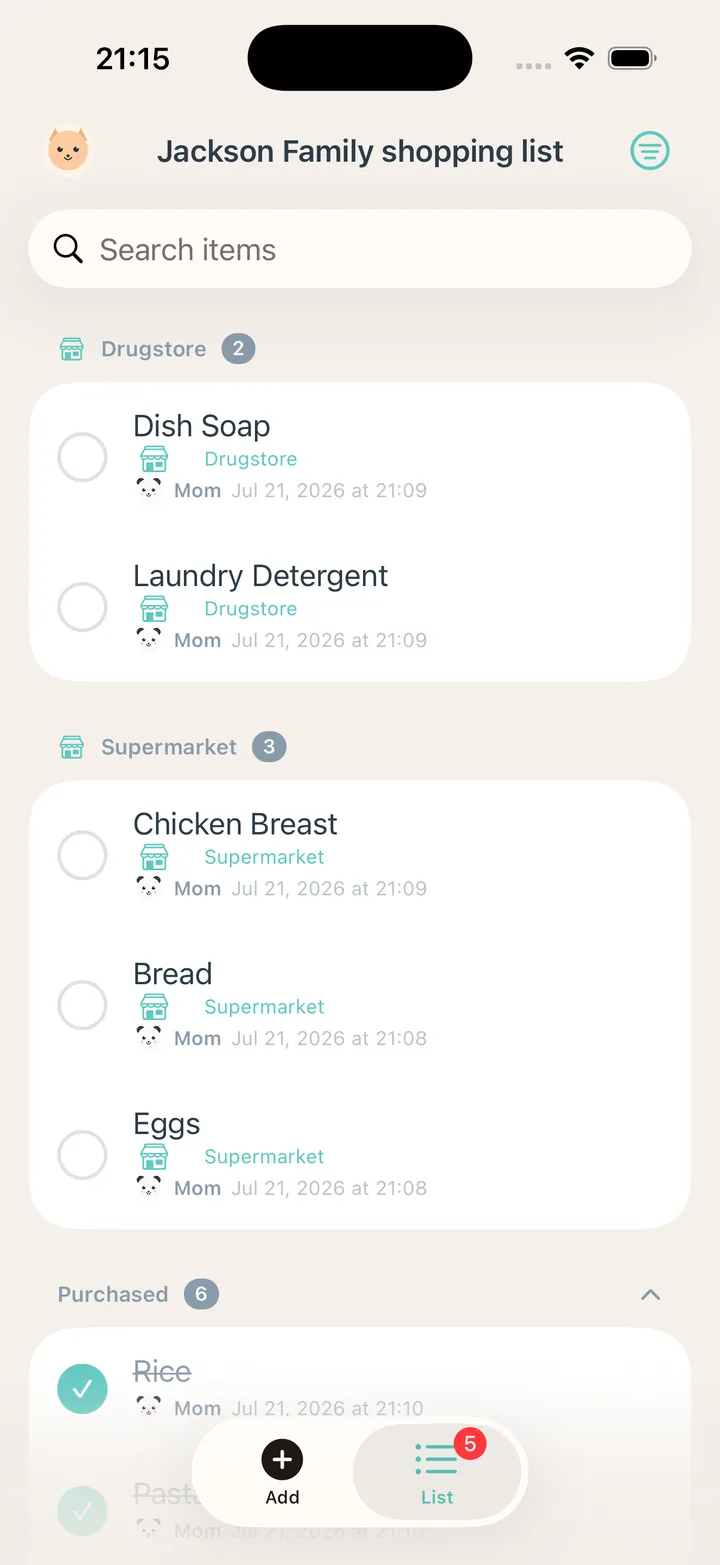
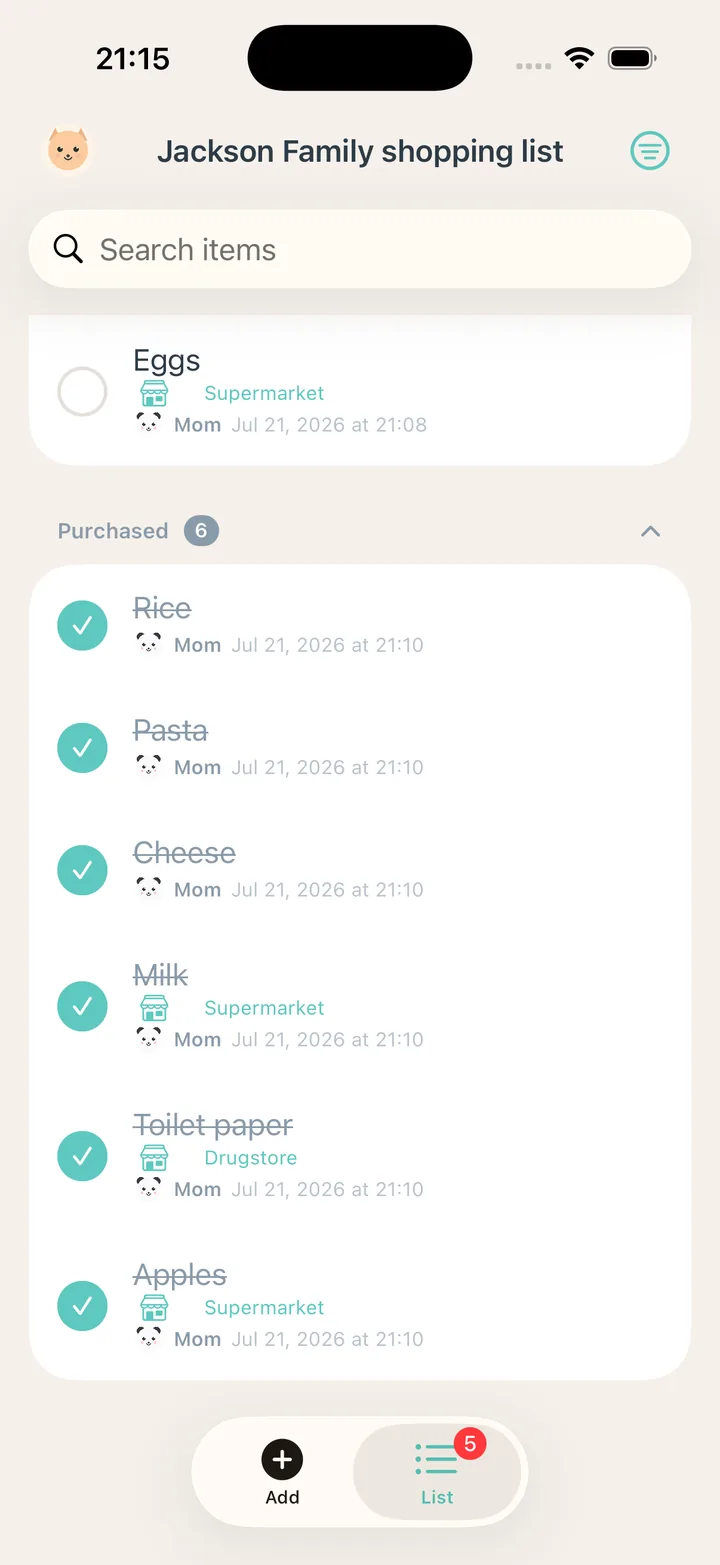
Glance with one hand, check off with the other. You never sort when adding—the list sorts itself when you shop.
What’s different
The first screen is a text field. Category, quantity, and store are never required, and there’s no confirmation screen before saving.
No ID, password, or email. Share with a QR code—and if you don’t share, everything stays on your device as before.
Widgets, Lock Screen, Control Center, Siri, Spotlight, and Apple Watch. More ways in means fewer forgotten adds.
“Milk and eggs” becomes two items. Barcodes fill in the name. No barcode? Snap the label and text is read on-device.
Add and check off without a connection. Without sharing, your data stays on your device. No tracking.
Peace of mind
Use every feature without registering a name or email address.
Your list is never sent anywhere unless you turn on family sharing.
No advertising or tracking SDKs are built in.
Camera and microphone access is requested only when you choose that feature.
Read the full Privacy Policy.
Help & support
There are just two screens: Add and List. Switch with the tabs at the bottom, or swipe from the screen edge.
Type an item name in the field on the Add screen—the first thing you see when you open the app.
Camera and microphone permission is requested only the first time you use those features. Every core feature works by typing if you decline.
Syncing happens when you open the app, pull to refresh, or make a change. The family name and the auto-delete period for purchased items are shared by everyone.
To stop sharing, choose “Leave this family.” That device returns to local-only use. Only show your QR code to people you trust.
FAQ
No. There’s no sign-up and no email address. Create a family to show a QR code; anyone who scans it shares the same shopping list. Behind the scenes, devices that know the same random family ID (the QR code) sync with each other.
Yes. Download it free from the App Store and start right away.
Yes. Adding, editing, and checking off items all work offline. Family sharing syncs when you’re back online or open the app.
No. It’s included with the iPhone app and installs on your paired Apple Watch automatically. View your list, add by voice or text, and check items off.
Type the item name and add it as usual. Store-specific codes that can’t be looked up show “Product not found” and switch to manual entry. Items without a barcode can also be added by label photo or voice.
Syncing may fail on networks with restrictions. You can still add and check off items on the device. If it doesn’t improve, please contact us.
Delete items in the app. To stop sharing, choose “Leave this family.” Deleting the app removes the data on that device. To delete shared data, contact us below.
Free, and ready to use right away.
Bug reports, requests, or questions—just email us. We reply in English and Japanese.